
WinUtilities Pro
Best Selling PC Optimization Software
Over 50,000,000 downloads worldwide
Dr. Folder
Customize Desktop & Windows Folder Icon and Color with 1 Click
Gmail Extractor
Extract email addresses, Phone numbers or Zip codes from Gmail folders
All In One Web Extractor
Powerful and easy-to-use application which helps you automatically extract specific information from web pages
YL Email Address Extractor
Extract email addresses from Outlook & AOL Mail folders and build your own mailing list


Latest News

Free Photo to Cartoon With AI Tool
In the ever-evolving realm of digital creativity, a new marvel has emerged: the Free Photo to Cartoon With AI tool ...
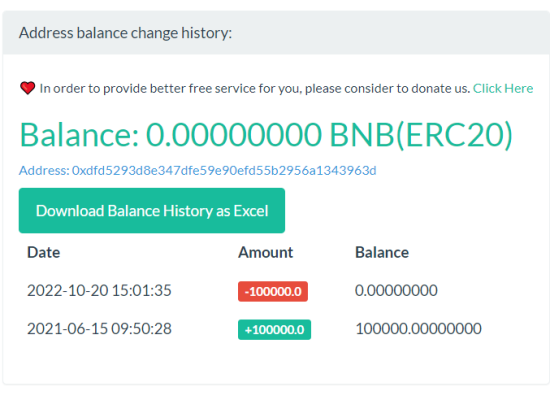
A Free and Online Tool to Check BNB(ERC20) Address Balance
In the ever-evolving world of cryptocurrency, keeping track of your assets is of paramount importance. With the introduction of Binance ...

Introducing “Old Photo Colorization”: Bringing Memories to Life
In the digital age, memories captured in black and white photographs hold a special place in our hearts. They offer ...

Free Old Photo Scratch Repair Tool – Remove Your Old Photo Scratches Online For Free
In the realm of cherished memories captured on film, time leaves its mark. Old photographs often bear the scars of ...

Free Tool to Check WBTC (ERC20) Address Balance
WBTC (ERC20) stands for Wrapped Bitcoin on the Ethereum blockchain. It is a tokenized version of Bitcoin (BTC) that is ...
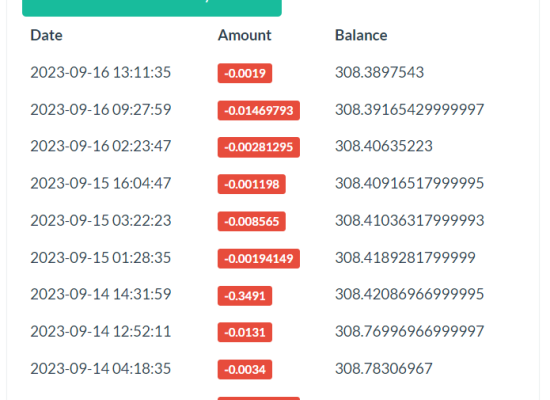
WETH(ERC20) Address Balance Checker: Easily Track Your Wrapped Ether (WETH) Balances and History
WETH (ERC20) stands for Wrapped Ether, which is an Ethereum-based token conforming to the ERC20 standard. It is essentially a ...
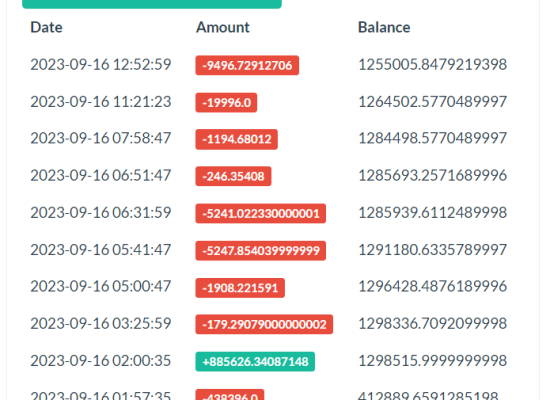
Free Online Tool to Explore Your DAI (ERC20) Balance and Transaction History
DAI (ERC20) is a type of digital currency that operates on the Ethereum blockchain as an ERC20 token. It is ...
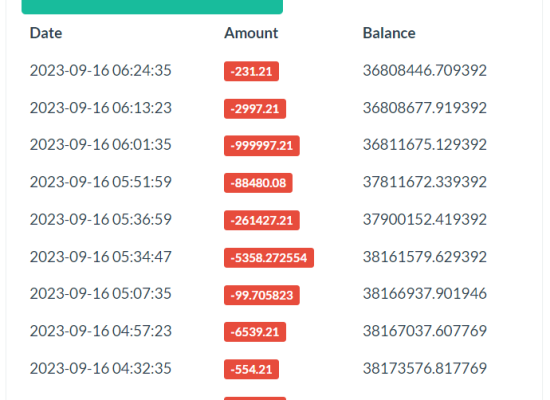
Free Tool to check USDC (ERC20) address balance – How to use?
What is USDC (ERC20): USDC (ERC20) stands for USD Coin on the Ethereum blockchain using the ERC20 token standard. It ...
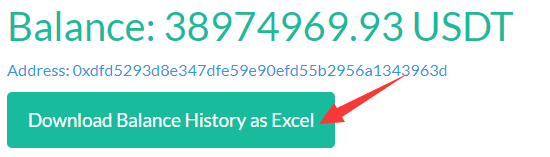
Free USDT-ERC20 Address Balance Checker – User Guide
The USDT-ERC20 Address Balance Checker is a free online tool designed to query and display the balance and transaction history ...
PDF to Word Converter: Seamlessly Transform PDF to WORD File for Free!
In the era of digitalization, access to versatile online tools is paramount. The newly launched online PDF to Word converter ...
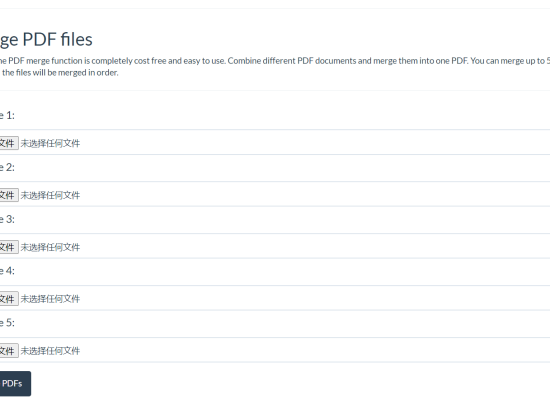
Free Online PDF Merge Tool – Seamlessly Combine Multiple PDFs into One
How to Merge PDF Files: Visit https://www.yillon.com/merge_pdf Click the “Choose File” button. Select the PDF files you want to merge ...

Exploring the Functions, Applications, and Features of Free Online AI Article Generator
In today’s fast-paced digital world, content creation plays a pivotal role in various aspects of business and personal communication. However, ...

Free Old Photo Restoration With AI – Revive Your Precious Memories
In the digital age, preserving cherished memories has never been easier. However, for those with older photographs, time can take ...
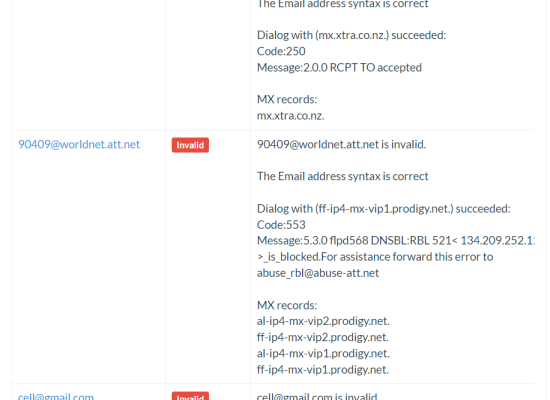
How to verify one or more email addresses with an Online Email Address Verifier?
An online email address verifier is a valuable tool that can help individuals and businesses ensure the accuracy and validity ...
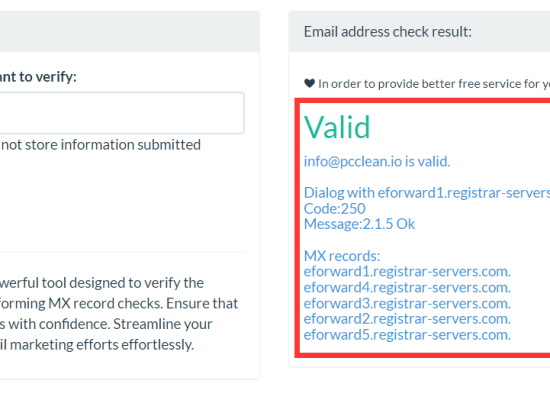
Free Online Email Verifier: Verify Emails with Ease!
Free Online Email Verifier: Verify Emails with Ease! In today’s digital age, email communication is ubiquitous. However, not all email ...
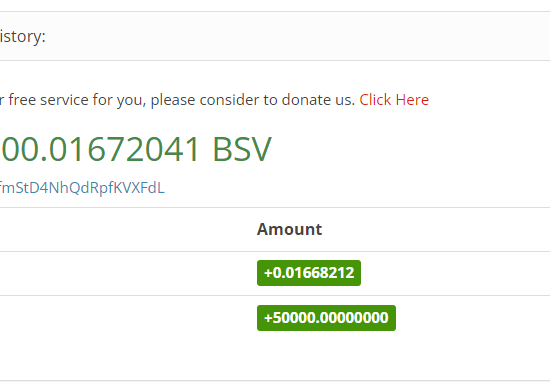
How to Use BSV Address Balance Checker: A Comprehensive Guide
Bitcoin SV (BSV) is a popular cryptocurrency known for its focus on scalability and utility for various blockchain applications. Whether ...
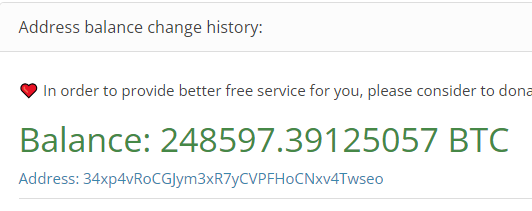
A Guide to Using a Bitcoin Address Balance Checker
A Bitcoin address balance checker is a tool that allows you to check the balance of a Bitcoin address. Every ...

Using the USDT TRC20 Address Balance Checker Tool – A Step-by-Step Guide
The USDT TRC20 Address Balance Checker Tool is a handy utility that allows you to easily check the balance of ...
WinUtilities version 15.89 Released
What’s new in this release (v15.89)? Added improvements for latest version of Windows 11 Updated database Updated translations Performance improvements ...
WinUtilities version 15.8 released
What’s new in this release (v15.8)? Added 20+ new plugins for History Cleaner Improved compatibility for Windows 10 & Windows ...